Phone Accessibility Settings That Make Life Easier
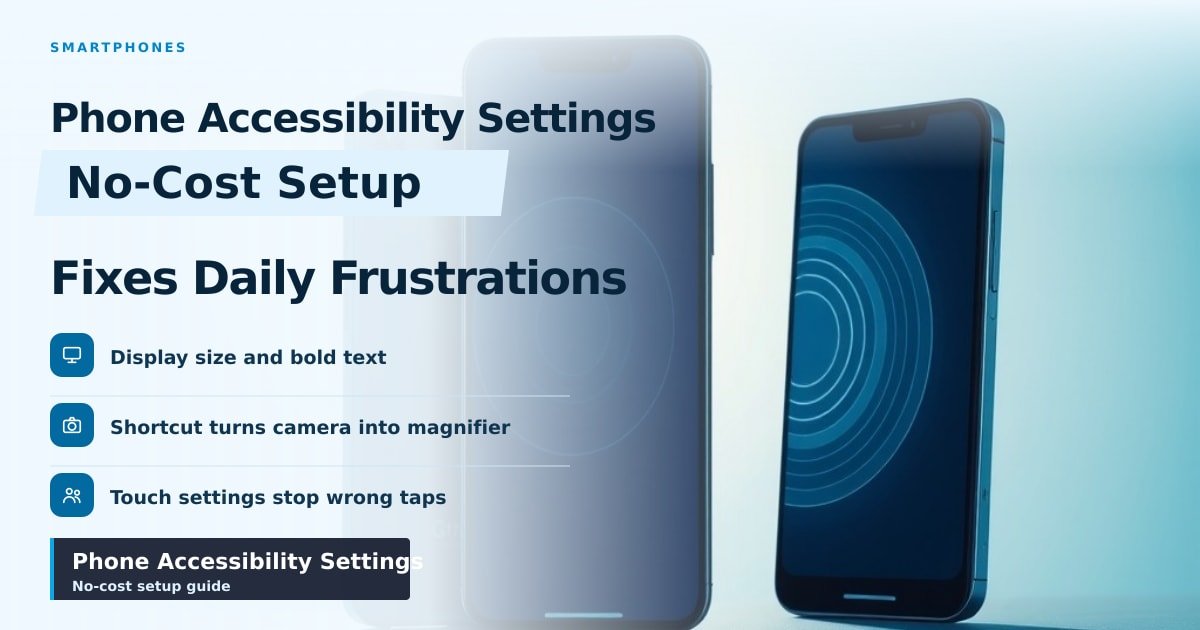
TL;DR: Every phone hides a menu that makes text bigger, buttons easier to press and sound clearer. Start with display size, the accessibility shortcut and Guided Access. They take about 20 minutes and fix most daily frustrations, with no new phone or paid app.
My neighbour's dad got his first smartphone in March. He missed six calls in one week, not because he couldn't hear the ringtone but because he couldn't read the name on the screen. We spent 20 minutes in the settings menu. He hasn't missed one since.
Best phone accessibility settings to change first
On an iPhone, open Settings, then Accessibility, then Display & Text Size. On Android, go to Settings, then Accessibility, then Display size and text. Everything below lives in those two menus, and none of it costs anything.
- Bigger text. Bump the slider up one or two steps, not to the maximum. Past a point, big letters crowd the screen and you see fewer words per line.
- Bold text. Thickens every letter. This one small switch does more for readability than most people expect.
- Display size. Makes icons, buttons and menus bigger too, not just words.
- Higher contrast. Sharpens the difference between text and background, which helps in sunlight.
Do the text size change with the person who'll use the phone, not for them. What looks comfortable to you may still be too small at arm's length.
Put the magnifier one click away
The Feature You'll Use Most On iPhone: Settings > Accessibility > Accessibility Shortcut, tick Magnifier and anything else you need. Now a triple-click of the side button turns the camera into a magnifying glass. Point it at a medicine label or a restaurant menu. On most Android phones you can hold both volume keys for three seconds, or tap the Magnifier tile in Quick Settings.
The same shortcut can turn on VoiceOver (iPhone) or TalkBack (Android). Those are screen readers: the phone speaks whatever is on screen and you control it with swipes. They're brilliant and they take a week to learn. Don't switch one on as a surprise. People get stuck and panic.
Settings for shaky hands and missed taps
A normal phone is hard to hold steady if your hands shake or your grip is weak. These settings help.
- AssistiveTouch (iPhone) puts a floating dot on screen. Press it to go home or open apps without touching the buttons.
- Touch and hold delay (Android) and Touch Accommodations (iPhone) make the phone wait longer before it acts. Missed taps stop becoming wrong taps.
- Back Tap (iPhone): double-tap the back of the case to open the magnifier. No reaching for buttons at all.
- Guided Access (iPhone) or Screen pinning (Android) locks the phone to one app. Hands it to a grandchild, or helps a parent with memory loss stay in one place.
Captions and sound alerts you'll actually notice
Live Caption shows on-screen text for videos and voice notes. On Android it's in Settings > Accessibility; on iPhone, Settings > Accessibility > Live Captions. It works offline and helps anyone who struggles in noisy rooms, not just people with hearing loss.
If hearing is the issue, check Sound Amplifier on Android. Plug in headphones and it turns the phone into a mild hearing aid for face-to-face chats. iPhone has Sound Recognition, which listens for a doorbell, smoke alarm or crying baby and buzzes your wrist.
What this means for you
Fifteen minutes tonight beats a new phone. Sit down with a real task: a photo of a bill, a missed call log, a text message. Change one setting, test it, then change the next.
Don't buy a so-called "senior phone" with giant plastic buttons. A standard iPhone or Pixel, set up properly, does more and gets security updates for years.
And don't max everything out. Huge text plus maximum zoom plus bold turns a screen into four words and a lot of scrolling. Aim for comfortable.
Key Takeaways
- Display size and bold text fix the most common complaint: "I can't read it."
- A triple-click shortcut turns your camera into a magnifier instantly.
- Touch Accommodations and AssistiveTouch stop shaky hands from causing wrong taps.
- Guided Access locks the phone to one app, which prevents a lot of confusion.
Frequently Asked Questions
How do I make text bigger on my phone?
On iPhone, go to Settings > Accessibility > Display & Text Size > Larger Text. On Android, use Settings > Accessibility > Display size and text, then move the font slider up.
Where are accessibility settings on Android?
Open Settings and scroll to Accessibility. On Samsung it may be under Settings > Accessibility > Vision or Hearing. You can also add an Accessibility tile to Quick Settings for one-swipe access.
How do I turn on captions for videos on my phone?
Enable Live Caption in Accessibility settings. Once it's on, most videos and voice messages show captions automatically, even with the sound off.
Sources
How did this story feel?
Be the first to react
AI assistance. This article was researched and drafted with AI tools and reviewed by our editorial team before publication. We link to sources at the end of every article so you can verify the claims. If you spot an error, please let us know.
Recommended gear
Related picks for this guide

Samsung Galaxy S25 Ultra
6.9" AMOLED · 200MP · 5000mAh
Editor's pickView on Amazon →
Google Pixel 9a
6.3" OLED · Tensor G4 · 7-year updates
Best valueView on Amazon →Affiliate links: we may earn a commission at no extra cost to you.
Weekly tech brief
The tech stories worth your time, every Sunday.
One short email with the most useful guides and gadget picks from the week. No spam, unsubscribe anytime.
Written by
TechPulse TeamThe TechPulse editorial team publishes clear, practical technology guides. Every article is original and written to be understood — not just skimmed. Read our editorial policy.
Comments (0)
No comments yet — start the conversation!
Keep reading
Why Phone Speakers Are Getting Worse in 2026
Thinner phones and bigger batteries squeezed the air out of speaker boxes this year. Here's why your next phone sounds flat, and what to check before buying.
Smartphone haptics in 2026: why some taps feel better
Good haptics feel like a crisp tap; bad ones feel like a bee in a jar. Here's what changed in 2026 — and how to test a phone in 30 seconds.
Why Phones Slow Down After Two Years — And What Helps
Your phone didn't get worse overnight — storage, battery and app updates did it. Here's the fix order that works, and what to skip.