
Windows 11 Tricks That Make an Old PC Feel New
TL;DR: These Windows 11 tricks make an old PC feel faster without buying new parts. Turn off startup apps, cut visual effects, free up storage, and use the right power mode. You should notice quicker sign-ins and smoother clicks in under an hour.
Your laptop takes 90 seconds to reach the desktop. Then the fan roars when you open two browser tabs. Before you spend money, try the Windows 11 tricks below. Most are free settings you can undo.
The Windows 11 Tricks Worth Doing First
Start with startup apps. These are programs that launch by themselves when you sign in. Open Settings > Apps > Startup and switch off anything you don’t need at login. Keep your antivirus. Turn off game launchers, chat apps and updaters. Fewer apps fighting for memory (RAM, your PC’s short-term work space) means a faster sign-in.
Next, reduce animations. They are the sliding and fading effects when you open menus. Go to Settings > Accessibility > Visual effects and turn off Animation effects. The PC looks less fancy but feels snappier. On a slow machine, that trade is worth it.
Then set the power mode. Go to Settings > System > Power & battery and choose Best Performance when plugged in. Laptops on battery may drain faster, so switch back for travel. This helps when Windows is slowing games or video calls.
How to Speed Up an Old PC by Clearing Clutter
A full drive makes Windows work harder. Turn on Storage Sense: Settings > System > Storage > Storage Sense. It deletes temporary files (leftover junk from installs and updates) and empties the Recycle Bin on a schedule. Set it to run weekly if you forget.
Uninstall apps you don’t use from Settings > Apps > Installed apps. Sort by size and remove old games, trial software and duplicate tools. Move photos and videos to an external drive. Keep at least 15–20GB free on the Windows drive; that space helps updates and temporary files.
If the PC still feels slow, check the drive. Open Task Manager, go to Performance, then Disk. If it says HDD, your storage is an old-style spinning hard drive. Replacing it with an SSD (solid-state drive, a fast storage chip with no moving parts) is the biggest real upgrade for many old PCs.
Windows 11 Performance Tips for Small Annoyances
Use this short list for the rest:
- Turn off background apps you don’t use. Open Settings > Apps > Installed apps, pick the app, then set Background apps permissions to Never.
- Run Windows Update once a month. Updates can fix driver bugs that cause stutter.
- Avoid paid “PC cleaner” apps. Windows already has Storage Sense and Disk Cleanup.
- Close browser tabs you aren’t using. Twenty open tabs can eat more memory than a video editor.
What This Means for You
Do these in order: startup apps, animations, Storage Sense, then the drive check. Spend an hour before spending money. These Windows 11 settings for old computers cost nothing and are easy to reverse.
If the PC has 4GB RAM, avoid leaving many apps open; that will still crawl. An 8GB RAM upgrade helps if your laptop allows it. But if Task Manager shows an HDD, an SSD will feel bigger than any software tweak.
Key Takeaways
- Turn off startup apps first; it’s the quickest win.
- Cut animations and use Best Performance when plugged in.
- Keep 15–20GB free and run Storage Sense weekly.
- If your PC still has an old spinning hard drive, an SSD is the biggest upgrade.
Frequently Asked Questions
How do I make Windows 11 faster on an old laptop?
Start with Settings > Apps > Startup and turn off extra apps. Then reduce animations in Accessibility, keep 15–20GB free, and run Windows Update.
Does Windows 11 slow down old PCs?
It can feel heavy on PCs with very little memory or an old hard drive. The settings above often recover most of the speed, but 4GB RAM and an HDD are real limits.
Is it worth upgrading an old PC to an SSD?
Yes, if the rest of the laptop works. An SSD cuts startup and app-load times far more than most software tweaks. Ask a repair shop if opening your model looks tricky.
How did this story feel?
Be the first to react
Recommended gear
Popular tech picks
Samsung Galaxy S25 Ultra
6.9" AMOLED · 200MP · 5000mAh
Editor's pickView on Amazon →
Apple MacBook Air 13-inch (M4)
M4 · 16GB · 13.6" Liquid Retina
Editor's pickView on Amazon →
Sony WH-1000XM5
Over-ear ANC · 30h battery
Best headphonesView on Amazon →Affiliate links: we may earn a commission at no extra cost to you.
Written by
TechPulse Team
The TechPulse editorial team publishes clear, practical technology guides. Every article is original and written to be understood — not just skimmed.
Comments (0)
No comments yet — start the conversation!
Keep reading
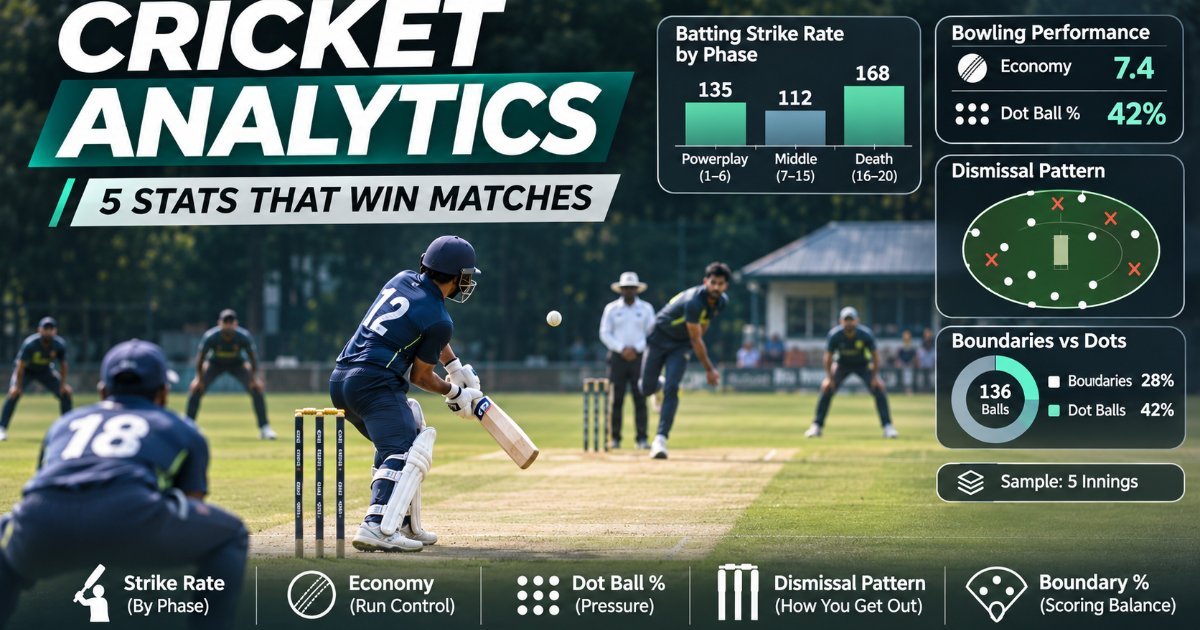
Cricket Analytics for Club Teams: 5 Numbers That Actually Help You Win
Most club scorecards count runs and wickets. These five numbers tell you why a player is helping, or hurting, the team.
Browser Tricks Power Users Swear By
Skip the extensions. These built-in browser tricks — tab search, hotkeys, tab groups and Memory Saver — save real time every day.
Browser Tricks Power Users Swear By
You closed the wrong tab. Here's the shortcut that brings it back, plus five more browser tricks that make daily browsing faster.