
Gaming Tricks 2026: Make Games Run Smoother, No Upgrade
TL;DR: You don't need a new phone, laptop or console to make games run smoother in 2026. Three free settings do most of the work: the built-in upscaler, a frame cap that matches your screen, and better cooling. Most people never touch any of them.
Twenty minutes into a match, your phone is warm enough to toast bread and the frame rate has slid from smooth to slideshow. You open a shopping tab, look at the price of a new handset, and close it again. Good news: the free fixes got noticeably better this year.
What actually changed in 2026
Upscaling (rendering the game at a lower resolution, then stretching the picture back to full size) used to be a graphics-card feature. Now it's everywhere. Phones use Snapdragon Game Super Resolution or Arm's open ASR upscaler; mid-range laptops run DLSS 4 and XeSS 2. Less work per frame means more frames per second: fps, the number of images the screen draws each second.
Frame generation also went mainstream. That's software that invents extra in-between frames so motion looks smoother than your hardware can really produce. Nice for slow, pretty games. Less nice for fast shooters.
Game modes grew teeth too. Android's built-in Game Mode lets you set a performance profile for each game, and iPhone's Game Mode (added in iOS 18) still puts your game ahead of background apps. On PC, more games now pre-load their shaders (the maths that makes lighting work) before you play, which kills a lot of first-level stutter.
Settings that make games run smoother
- Switch the upscaler on. Look for "Super Resolution", "Upscaling", or just pick the "Performance" graphics preset. This is the biggest free win on a phone or mid-range laptop.
- Cap the frame rate to your screen. A 60Hz screen refreshes 60 times a second and can't show 90fps. Capping at 60 keeps timing steady, and steady feels better than fast-but-jumpy.
- Turn on Game Mode or Performance mode. The game gets priority. Expect more heat and faster battery drain.
- Close the browser before you play. Chrome with 30 tabs open eats the memory your game wants.
Heat is still the real enemy
Every phone and laptop throttles: when it gets hot, it slows itself down to protect the chips. Chips are more efficient in 2026, but they sit in thinner bodies than ever. A plastic case, a 35°C room, or charging while you play will cost you more frames than any setting gains you.
- Take the case off during long sessions.
- Don't charge and play heavy games at the same time.
- Keep 10–15% of storage free, because a full drive makes everything sluggish.
- Prop a laptop up so its vents can breathe.
What this means for you
Do the free stuff first, in this order: upscaler on, frame cap on, case off, charger out. That order matters, because resolution and cooling are the two things that actually move the needle. If a game stutters only in its first few minutes, that's shaders loading. Leave it alone and it usually settles.
Be sceptical of two things. Frame generation makes the picture look smoother but doesn't cut input lag (the delay between your tap and the game reacting), so skip it in competitive shooters. And ignore "RAM booster" apps. They close apps you'll just reopen, and your game gains nothing.
Key Takeaways
- Built-in upscalers now exist on phones and cheap laptops, and they're free to switch on.
- Cap your frame rate to your screen's refresh rate; steady beats fast.
- Heat causes more stutter than bad settings — cool the device before you tweak anything.
- Frame generation smooths the picture but not your reaction time.
Frequently Asked Questions
Does Game Mode actually improve performance?
Yes, a little. It stops background apps from stealing processor time, so the game holds its frame rate more steadily. Don't expect a huge jump — it's a tidy-up, not a new chip.
How do I get more FPS on my phone without buying a new one?
Turn on the in-game upscaler, drop shadows and reflections one notch, and play with the case off. That combination often gains 10–20 frames.
Do I need a 120Hz screen to game smoothly?
No. A steady 60fps on a 60Hz screen looks better than 120fps that keeps dipping. High refresh rates help most with scrolling and fast competitive games.
How did this story feel?
Be the first to react
Recommended gear
Popular tech picks
Samsung Galaxy S25 Ultra
6.9" AMOLED · 200MP · 5000mAh
Editor's pickView on Amazon →
Apple MacBook Air 13-inch (M4)
M4 · 16GB · 13.6" Liquid Retina
Editor's pickView on Amazon →
Sony WH-1000XM5
Over-ear ANC · 30h battery
Best headphonesView on Amazon →Affiliate links: we may earn a commission at no extra cost to you.
Written by
TechPulse Team
The TechPulse editorial team publishes clear, practical technology guides. Every article is original and written to be understood — not just skimmed.
Comments (0)
No comments yet — start the conversation!
Keep reading
Windows 11 Tricks That Make an Old PC Feel New
These Windows 11 tricks make an old PC feel faster without new parts. Start with startup apps, animations and storage clutter.
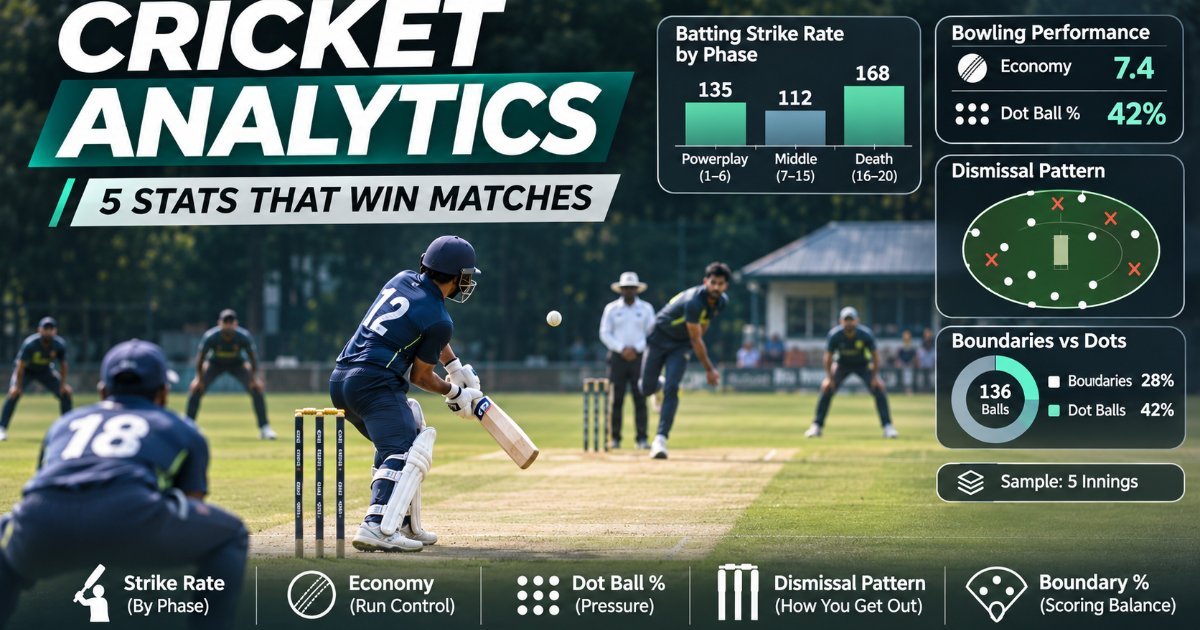
Cricket Analytics for Club Teams: 5 Numbers That Actually Help You Win
Most club scorecards count runs and wickets. These five numbers tell you why a player is helping, or hurting, the team.

Browser Tricks Power Users Swear By
Skip the extensions. These built-in browser tricks — tab search, hotkeys, tab groups and Memory Saver — save real time every day.