
Move Everything to Your New Phone Without Losing Data
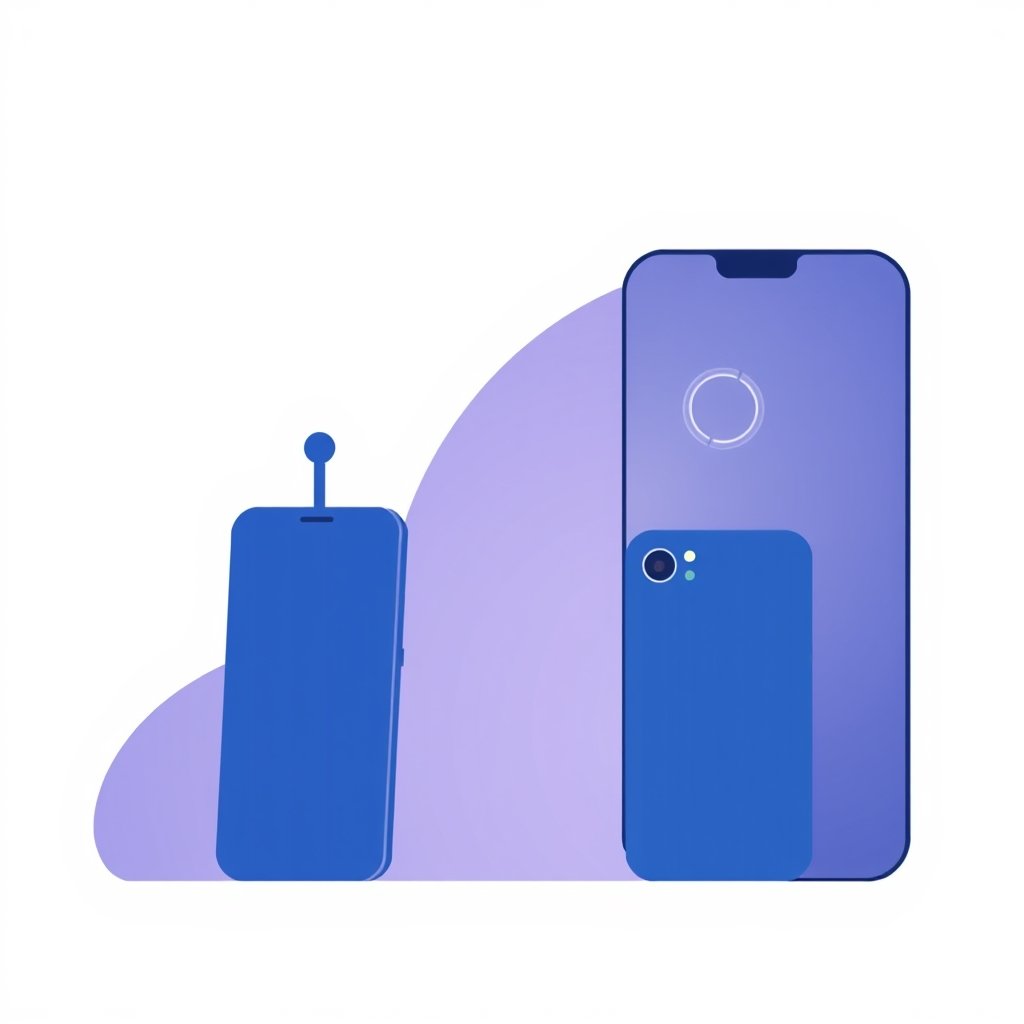
You know that sinking feeling when you unbox your shiny new phone and realize transferring everything might be a nightmare? Here's how to keep every photo, message, and app exactly where it belongs.
Before You Start: Back Up Your Old Phone
First things first — back up your current device. For iPhone, use iCloud or connect to iTunes/Finder. Android users should sync with Google Drive through Settings > Google > Backup. This step takes 20–40 minutes depending on how much stuff you've accumulated.
Transfer iPhone to iPhone
Apple's Quick Start feature makes switching between iPhones stupid simple. Just place both phones near each other during setup and follow the prompts. You'll need your old phone's passcode and Wi-Fi password ready.
Move from Android to iPhone
Use Apple's Move to iOS app. Download it on your Android, then select "Move Data from Android" during iPhone setup. Transfers include contacts, messages, photos, videos, mail accounts, and some apps.
Transfer Android to Android
Sign in with the same Google account on your new phone. Google One can restore apps, contacts, calendar events, and device settings. Samsung users get Smart Switch for additional options including PC connectivity.
Transfer from iPhone to Android
Google's "Data Transfer Tool" handles basic imports. Connect both phones via cable or use the wireless option. Supported data includes contacts, messages, photos, videos, and music from iTunes.
Handle App Logins and Accounts
Don't forget passwords! Enable two-factor authentication backups where possible. Consider using a password manager like Bitwarden or 1Password to simplify logging back into apps.
Restore Your Apps and Media
Most apps automatically reinstall after restoring from backup. Check your app store's library section if anything goes missing. Purchased music, books, and subscriptions transfer through their respective platforms.
## Key Takeaways
• Back up your old phone before starting any transfer process
• Use official tools like Quick Start, Smart Switch, or Move to iOS for best results
• Sign in with the same accounts (Google/Apple ID) to restore purchases automatically
• Allow 30–60 minutes for large transfers; ensure both phones stay charged
• Double-check passwords and 2FA settings before wiping your old device
Frequently Asked Questions
Will I lose my text messages when switching phones?
No — provided you back up properly. iPhone-to-iPhone transfers preserve messages via iCloud or direct transfer. Android backups include SMS through Google's backup service. Cross-platform moves may require third-party tools like Email Backup Wizard.
How long does transferring data take?
It depends on how much data you have. Small transfers (under 10GB) finish in under an hour. Larger collections might take overnight. Always plug both phones into power sources during transfers.
Can I transfer WhatsApp chats to a new phone?
Yes — WhatsApp now supports end-to-end encrypted backups. On iPhone, go to Settings > Chats > Chat Backup. Android users find this under Settings > Chats > Chat backup. Both platforms allow restoring conversations after reinstalling the app.
How did this story feel?
Be the first to react
Written by
TechPulse Team
The TechPulse editorial team publishes clear, practical technology guides. Every article is original and written to be understood — not just skimmed.
Comments (0)
No comments yet — start the conversation!
Keep reading
Fast Charging Battery Wear in 2026: What Changed This Year
The old rules about fast charging killing your battery are mostly dead. Here's what changed in 2026 — and what still actually matters.
Repairability Score: What It Is and Why It Matters
Your phone breaks and the repair quote shocks you. A repairability score could have warned you. Learn what these ratings mean before you buy.
iPhone vs Android Updates: The Honest Comparison
iPhone vs Android updates compared honestly — support lengths, patch track records, and what experts actually check before buying a phone.