Phone Widgets: 5 Worth Using, 4 to Delete
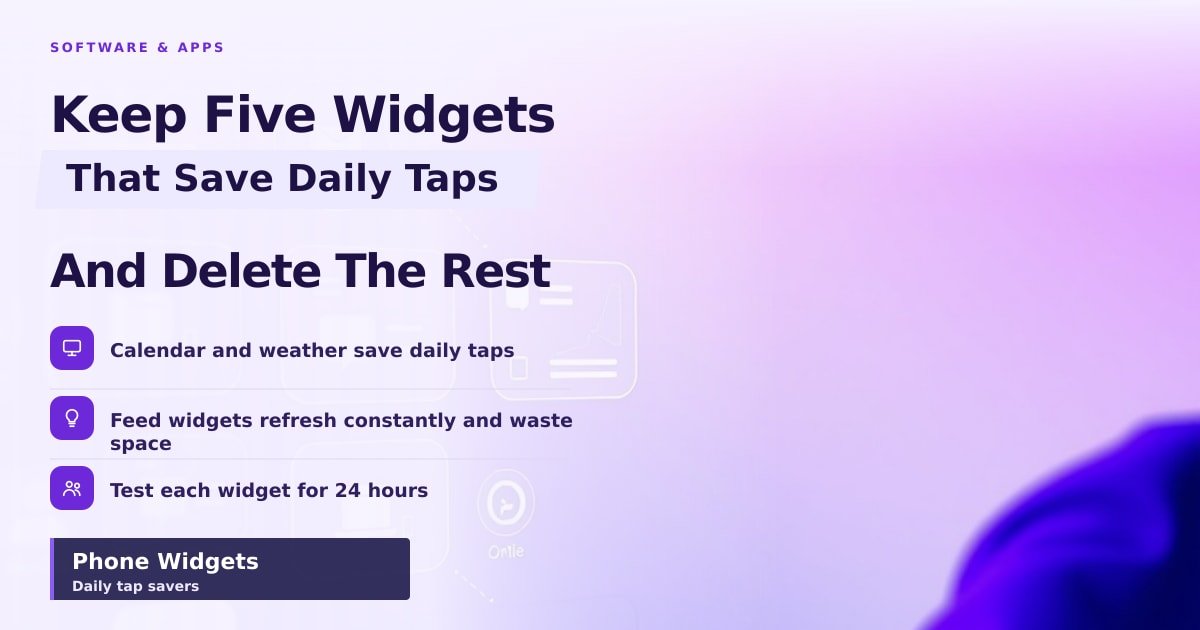
TL;DR: A widget is a small live box on your home screen that shows one app's information without you opening it. The good ones save a tap or two every day: calendar, weather, reminders, notes, music controls. Everything else quietly eats battery and screen space, so keep a handful and delete the rest.
Last week a friend handed me her phone to show me a photo. I had to swipe twice to find the camera. Her home screen held 14 widgets and not one of them showed the calendar she checks nine times a day.
What a widget actually does to your phone
A widget is a window into an app that stays open on your home screen. You glance, you get the answer, you move on. No loading screen, no icon hunting.
That convenience has a price. Each widget asks its app to wake up and refresh: roughly every 30 minutes on Android, and whenever the system decides on iPhone. Multiply that by ten widgets and your battery notices by 4pm. Widgets also push your app icons onto page two, which makes the apps you actually use harder to reach.
So the real question isn't "is this widget nice?" It's "does this widget replace a tap I make every single day?"
Phone widgets worth keeping
Five earn a place on almost any home screen. Each one replaces a daily check.
- Calendar (next three events). Google Calendar and Apple Calendar both ship one. It kills the "what's next?" check that happens 20 times a day.
- Weather, one city only. Answers the umbrella question without unlocking anything. A second weather widget is a first weather widget too many.
- Reminders or to-dos. Apple Reminders and Todoist both make them. Seeing three tasks on screen stops the "I'll remember it" lie.
- A shopping list or note. Google Keep's note widget keeps the list visible while you shop, so you stop re-reading the same item.
- Music controls. Spotify and YouTube Music widgets let you pause, skip and change volume without reopening the app. Handy when your phone is in your pocket.
Widgets that just waste space
Anything showing information you didn't ask for is decoration. Decoration still costs battery.
- News carousels and "trending" strips. They refresh constantly and you'll never finish reading them.
- Social feed previews. A widget showing the last four posts is a feed you can't scroll, so you open the app anyway.
- Stock and crypto tickers. Checking every 15 minutes doesn't improve your returns.
- Quote-of-the-day and giant decorative clocks. They look great in screenshots and tired by week two.
- Two widgets from one app. Two weather cities, two calendars. Pick one.
How to add widgets and test them in 24 hours
On iPhone, touch and hold an empty spot on the home screen, tap Edit in the top corner, then Add Widget. On Android, touch and hold empty space and pick Widgets. The list runs alphabetically by app name.
Then run the 24-hour test. Add one widget and pay attention for a day. If you didn't read or tap it at least three times, remove it. That number isn't science, but it's a useful bar.
Start on one screen. Home screen widgets compete with your icons for thumb space, and a crowded screen slows you down.
What this means for you
Keep four to six widgets, all on your first screen. Put the one you need most (usually calendar) top left, where your thumb lands first.
If your phone dies early, check Battery Usage on iPhone or Settings > Battery on Android. A badly built widget can be the reason. Prefer widgets from the app's own maker over third-party lookalikes.
My rule: if a widget would look empty in a week, skip it.
Key Takeaways
- A widget shows one app's info on your home screen so you don't have to open it.
- Keep the five that save a daily tap: calendar, weather, to-dos, notes, music.
- Delete feed-style widgets; they refresh a lot and you rarely read them.
- Test each new widget for 24 hours before it stays.
Frequently Asked Questions
Do widgets drain your battery?
Yes, a little, because each one asks its app to refresh in the background. A calendar or weather widget barely matters, but five feeds that update constantly can show up in your battery list.
How many widgets should I have on my home screen?
Four to six is plenty for most people. Beyond that, they push your apps off the first screen and cost more battery than they save in taps.
Are iPhone widgets better than Android ones?
Neither is clearly better. Android offers more sizes and more third-party choices; iPhone widgets look more consistent and refresh less often. Pick by the apps you already use.
Sources
- Android Developers: App widgets overview — https://developer.android.com/develop/ui/views/appwidgets/overview
- Apple Developer: Human Interface Guidelines, Widgets — https://developer.apple.com/design/human-interface-guidelines/widgets
- Wikipedia: Software widget — https://en.wikipedia.org/wiki/Software_widget
How did this story feel?
Be the first to react
AI assistance. This article was researched and drafted with AI tools and reviewed by our editorial team before publication. We link to sources at the end of every article so you can verify the claims. If you spot an error, please let us know.
Recommended gear
Related picks for this guide

Obsidian.md (v1.8)
Local · markdown · plugins · graph
Editor’s pickView offer →Cron.app (by Linear)
Scheduling · timezones · smart calendar
Sleek pickView offer →Affiliate links: we may earn a commission at no extra cost to you.
More on #widgets
Weekly tech brief
The tech stories worth your time, every Sunday.
One short email with the most useful guides and gadget picks from the week. No spam, unsubscribe anytime.
Written by
TechPulse TeamThe TechPulse editorial team publishes clear, practical technology guides. Every article is original and written to be understood — not just skimmed. Read our editorial policy.
Comments (0)
No comments yet — start the conversation!
Keep reading
Offline Maps: Your Backup When Signal Dies
Offline maps are saved map areas you download before a trip. Here's how to use Google Maps, Apple Maps and translation packs when your phone has no signal.
GTA 6 Is Out: Release Date, Price, Platforms and What to Know Before You Buy
GTA 6 launched on 19 November 2026 for PS5 and Xbox Series X|S at $79.99. Here is how it runs, what the editions include, and the buying traps to avoid.
GTA 6's $3.79 Billion First Day: What the Launch Numbers Really Mean
GTA 6 earned $3.79 billion on its first day with 32.5 million preorders, according to reports. Here is what those numbers do and do not prove.