
iPhone Hidden Features Worth Trying Today
TL;DR: Your iPhone already has features that save time every day, like Back Tap for quick screenshots and Live Text for copying words from signs. Try the four below first; most take under two minutes to set up.
You're holding a phone that can copy a recipe off a menu, quiet a group chat at 9 p.m., and take a screenshot without touching a button. Most people never turn those things on.
iPhone Hidden Features That Save Real Time
Start with Back Tap. It's a setting that turns a double or triple tap on the back of your phone into an action. Go to Settings > Accessibility > Touch > Back Tap. Pick Double Tap and set it to Screenshot.
I use this while holding a coffee and a shopping list. Two taps, and the screen is saved. A thick case can make it less reliable, so test it before you rely on it.
Live Text is next. It reads words inside photos and the camera view. Open the Camera app, point at a sign or menu, then tap the text button that appears. You can copy a Wi-Fi password or call a phone number without typing it.
Hidden iPhone Tricks for Texts, Signs and Screenshots
The keyboard has a trackpad hiding in it. Press and hold the space bar, then slide your thumb. The blinking cursor moves with you. That beats tapping the tiny text line five times.
Safari has a clutter remover. Tap the "aA" button in the address bar, then choose Show Reader. It strips ads and menus from most articles. Good for reading on a phone without zooming into a maze.
Want to lock a child into one app? Turn on Guided Access, a setting that keeps them in a single app. Go to Settings > Accessibility > Guided Access. Then triple-click the side button inside the app you want to lock. It stops accidental taps on your bank app or photo album.
Useful iPhone Features Hiding in Plain Sight
Focus modes are custom do-not-disturb setups. Go to Settings > Focus and create one for Work or Sleep. Pick the people and apps allowed to interrupt you. I let family calls through and silence work chats after 7 p.m. The phone still works; it just stops shouting.
Safety Check is a privacy tool that reviews who you share location and data with. Open Settings > Privacy & Security > Safety Check. It can stop sharing with people and apps in one pass. Read each screen before you confirm, because it can cut off Find My sharing you still want.
iPhone Settings You Didn't Know, and What to Try First
Try Back Tap and Live Text today. They are the fastest wins. Set up a Focus mode before your next busy week. Use Safety Check when you need a clean privacy reset, not as a daily tool.
Skip any feature you won't use weekly. A hidden setting you forget is just clutter. The best iPhone tips and tricks are the ones that remove one small annoyance from your day.
Key Takeaways
- Back Tap turns two taps on the phone's back into a screenshot or shortcut.
- Live Text copies words from menus, signs, and photos.
- Focus modes quiet noisy apps while letting important people through.
- Safety Check helps you review and stop location sharing.
Frequently Asked Questions
How do I turn on Back Tap on iPhone?
Go to Settings > Accessibility > Touch > Back Tap. Choose Double Tap or Triple Tap, then pick the action you want.
What is the most useful hidden iPhone feature?
For most people, Live Text and Focus modes save the most time. Back Tap is the quickest to set up.
How do I stop sharing my location on iPhone?
Open Settings > Privacy & Security > Safety Check, or use Find My to stop sharing with one person. Check the screen before confirming.
How did this story feel?
Be the first to react
Recommended gear
Popular tech picks

Samsung Galaxy S25 Ultra
6.9" AMOLED · 200MP · 5000mAh
Editor's pickView on Amazon →
Apple MacBook Air 13-inch (M4)
M4 · 16GB · 13.6" Liquid Retina
Editor's pickView on Amazon →
Sony WH-1000XM5
Over-ear ANC · 30h battery
Best headphonesView on Amazon →Affiliate links: we may earn a commission at no extra cost to you.
Written by
TechPulse Team
The TechPulse editorial team publishes clear, practical technology guides. Every article is original and written to be understood — not just skimmed.
Comments (0)
No comments yet — start the conversation!
Keep reading
Gaming Tricks 2026: Make Games Run Smoother, No Upgrade
Your phone doesn't need replacing — it needs three toggles flipped. Here's what actually changed in 2026 and what to do first.
Windows 11 Tricks That Make an Old PC Feel New
These Windows 11 tricks make an old PC feel faster without new parts. Start with startup apps, animations and storage clutter.
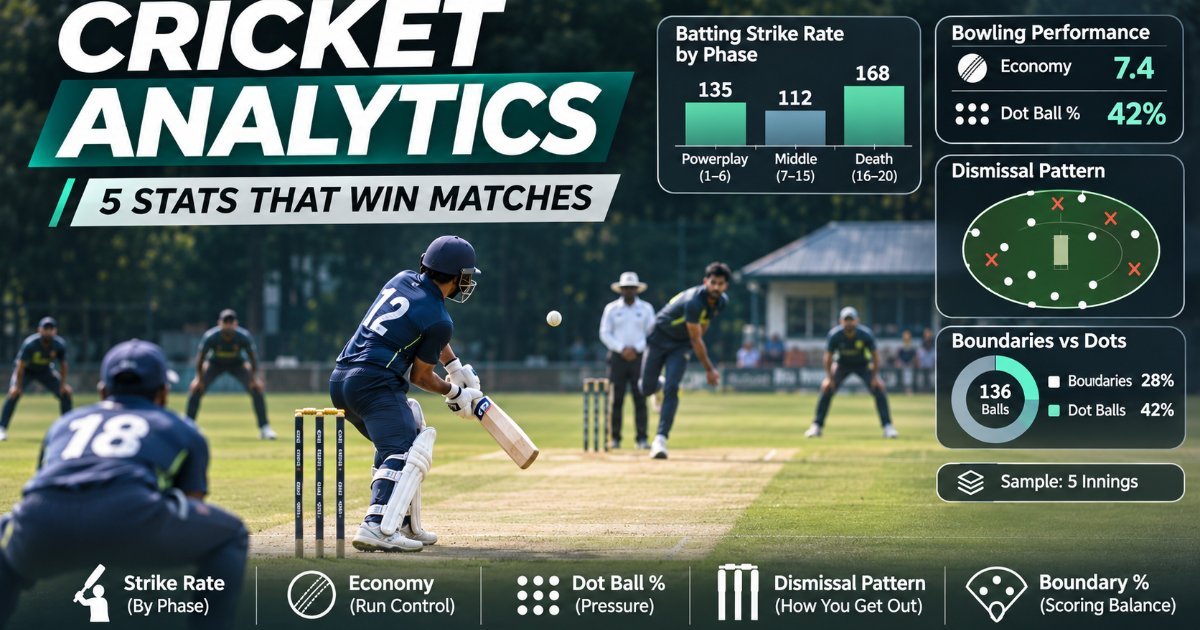
Cricket Analytics for Club Teams: 5 Numbers That Actually Help You Win
Most club scorecards count runs and wickets. These five numbers tell you why a player is helping, or hurting, the team.