Phone Notification Settings That Stop the Pinging
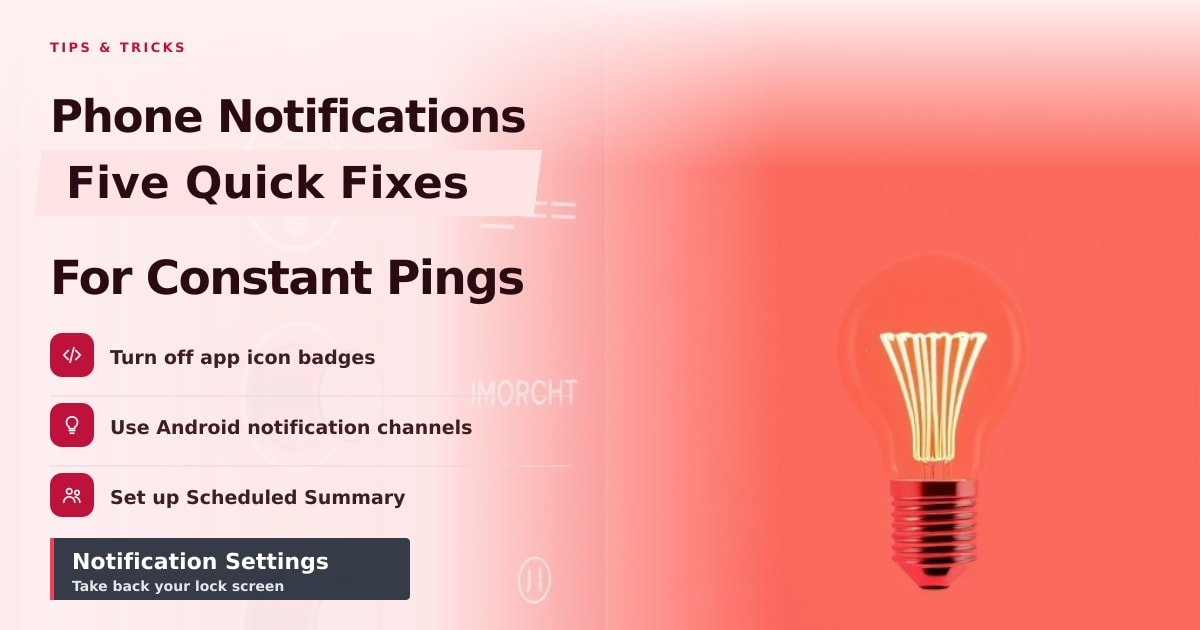
TL;DR: Your phone notification settings decide who gets to interrupt your day, and the default answer is almost everyone. Mute the junk apps, switch the rest to a scheduled summary, and run one Focus schedule — about 20 minutes of work for a permanently calmer phone.
Last Sunday at 8pm, a food app buzzed to remind you about a sandwich you looked at on Tuesday. You didn't order it. You just paid attention once, and the app took notes.
That's the whole business model. A ping costs the company nothing and costs you a small slice of focus. Fixing it isn't about willpower — it's about the switches.
Why your phone pings so much
Every app asks for notification access the moment you install it, usually while you're doing something else. Most of us tap "Allow" to make the box go away. Multiply that by 40 apps and you get a phone that treats a flash sale with the same urgency as your sister.
The trend cuts both ways. Android 15 added Notification Cooldown, which lowers the volume when one app fires a burst of pings in a row. iOS 18.1 added Priority Notifications, where Apple's AI floats the urgent stuff to the top of your lock screen. Both help. Neither asks the app to stop trying.
Five phone notification settings that do the heavy lifting
- Kill the red dots. Those number badges on app icons create low-level anxiety without telling you anything useful. Turn badges off and keep the banners.
- Use notification channels on Android. Long-press a notification, tap the gear, and you'll see separate switches per type — "Order updates" split from "Offers". Mute the marketing, keep the useful one.
- Set up Scheduled Summary on iPhone. Settings > Notifications > Scheduled Summary bundles non-urgent apps and delivers them at times you pick, say 12:30pm and 7pm. Your screen stays quiet in between.
- Schedule a Focus. Sleep and Work Focus modes can run on a timer, so you never have to remember. Let calls and messages from favourites through; everything else waits.
- Quiet the chat apps. On iPhone, set them to "Deliver Quietly". On Android, turn off "Allow sound". They still arrive, they just don't shout.
What the AI sorting actually means for you
Priority Notifications on iPhone, and the smarter sorting on newer Android phones, are a filter — not a mute button. Think of your lock screen as a mailbox: these tools stack the junk mail at the back, but it still lands in the box.
That's a genuine time-saver if you get a lot of work chat. It won't fix a shopping app that pings you every morning. For that, open Settings > Notifications, find the app, and turn the whole thing off. Your orders still show up inside the app when you open it.
One caveat: apps sometimes add new notification channels after an update, so glance at the list every few months.
What this means for you
Do this tonight, in this order. Turn off badges everywhere. Mute every shopping, food and game app. Keep sound on for exactly two things: real people and your bank's one-time passwords. Then let Focus run on a schedule and forget it.
You'll miss a few things at first. That's the point. Anything that truly matters will still reach you — and you'll feel the difference by Thursday.
Key Takeaways
- Default settings favour the app, not you — notifications are opt-out, never opt-in.
- Notification channels on Android and Scheduled Summary on iPhone are the two biggest wins.
- AI sorting reduces noise but can't remove an app you never wanted pinging you.
- Keep sound for people and security codes; mute the rest.
Frequently Asked Questions
Why does my phone still vibrate when it's on silent?
Silent mode mutes ringtones and alerts, but vibration is a separate switch. Check Settings > Sounds & Haptics on iPhone, or Settings > Sound and vibration on Android, and turn off vibration for notifications.
How do I turn off notifications for just one app?
Open Settings > Notifications on either phone, tap the app, and switch off "Allow Notifications". On Android you can also long-press one of its notifications and tap the gear for a shortcut.
Do fewer notifications actually save battery?
A little. Each ping wakes the screen and processor for a second or two, and dozens of those add up. Don't expect a dramatic jump — the calmer phone is the bigger prize.
Sources
- Google Support — Change notification settings on Android: https://support.google.com/android/answer/9079661
- Apple — iPhone User Guide: https://support.apple.com/guide/iphone/welcome/ios
- Google — Digital Wellbeing: https://wellbeing.google/
How did this story feel?
Be the first to react
AI assistance. This article was researched and drafted with AI tools and reviewed by our editorial team before publication. We link to sources at the end of every article so you can verify the claims. If you spot an error, please let us know.
Recommended gear
Related picks for this guide
Samsung Galaxy S25 Ultra
6.9" AMOLED · 200MP · 5000mAh
Editor's pickView on Amazon →
Google Pixel 9a
6.3" OLED · Tensor G4 · 7-year updates
Best valueView on Amazon →
ChatGPT Pro (2026)
GPT-5 · 1M token · canvas mode
Our pickView offer →Affiliate links: we may earn a commission at no extra cost to you.
More on #android
Weekly tech brief
The tech stories worth your time, every Sunday.
One short email with the most useful guides and gadget picks from the week. No spam, unsubscribe anytime.
Written by
TechPulse TeamThe TechPulse editorial team publishes clear, practical technology guides. Every article is original and written to be understood — not just skimmed. Read our editorial policy.
Comments (0)
No comments yet — start the conversation!
Keep reading
Charley Hull's Phone Detox Is a Nudge for Your Own Screen Time
Golfer Charley Hull is ditching her smartphone for the offseason. Here's what her break says about screen habits, and how to try a smaller version yourself.

Can Screen Time Mindfulness Work? Stanford Asks
Stanford Medicine is asking whether short animated videos can make you more aware of your phone habits. The answer may depend on what happens after the video ends.

Why Kids Need Smartphone Skills Before a First Phone
A holiday-season report argues kids should learn how a phone works before they own one. The details are thin, but the money and privacy logic holds up.